Step 1: Log in to a Ricoh Printer + Copier Device
The Printer + Copier Ricoh devices located across campus have scanning capabilities, as shown below. A scan from the Ricoh Printer + Copier will be delivered to your email. There is no charge for a document scan using Ricoh Printer + Copiers.
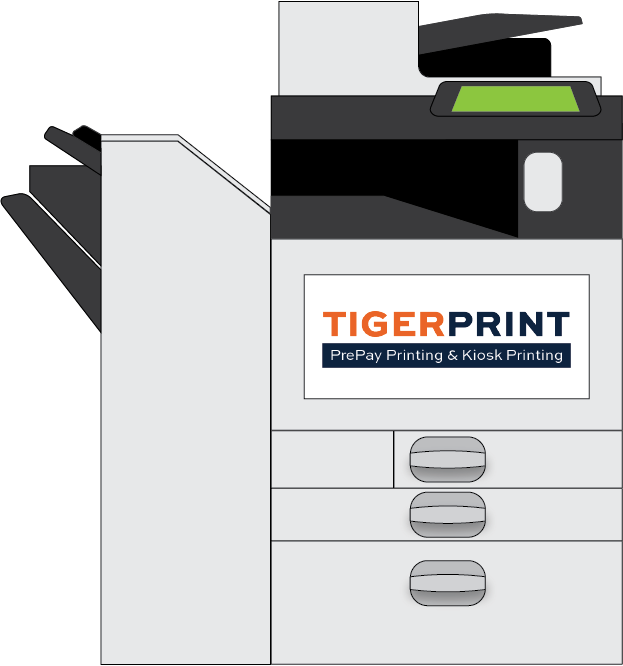
There are three ways to login at a printer + copier: 1) by tapping your mobile Tiger ID; 2) by entering your Auburn username and password; or 3) by entering your ID number (print release code; this number can be found in a Papercut email from a previous print job). Instructions for all three ways to login are shown below.
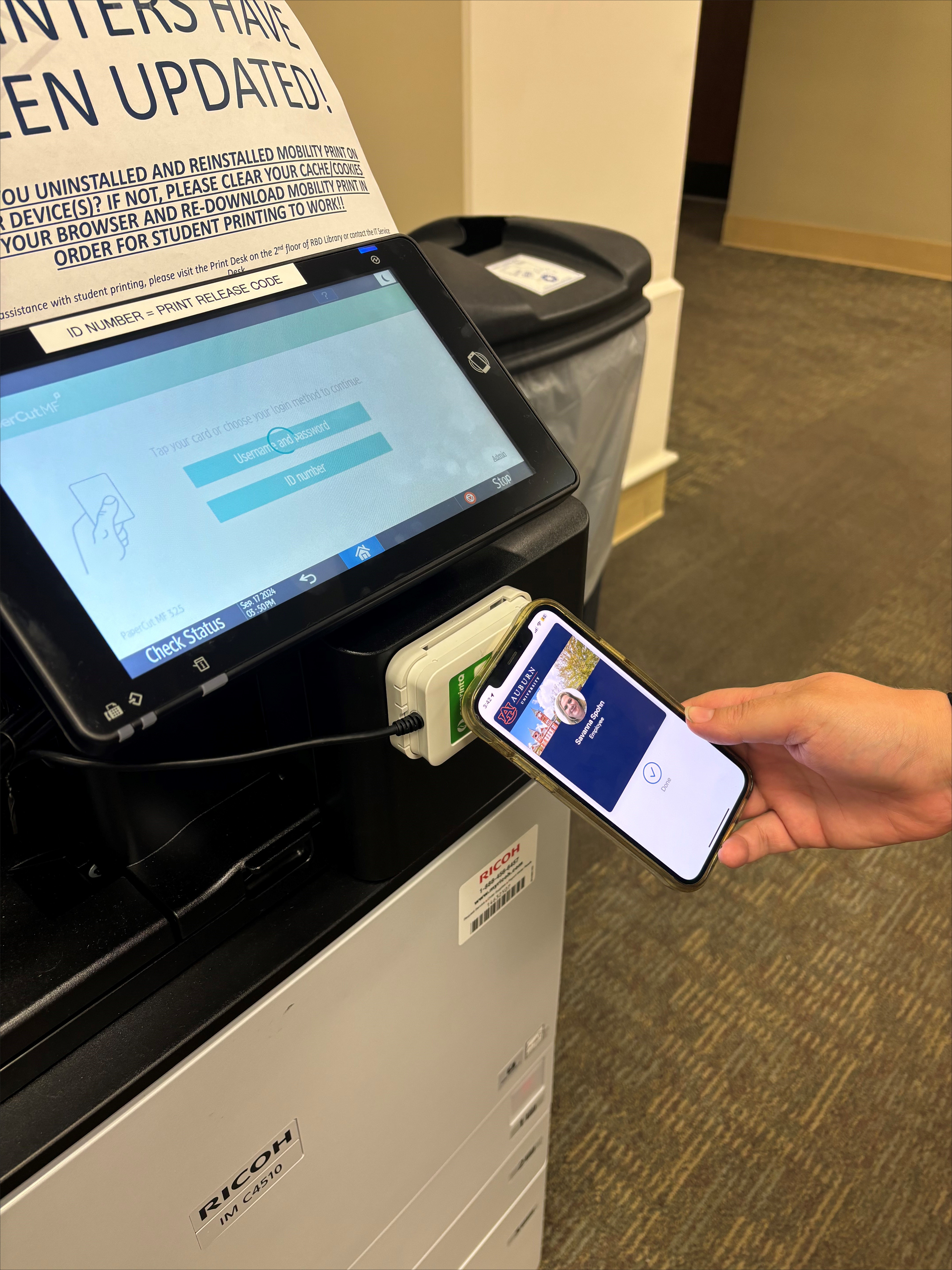
1. To login using your mobile Tiger ID, simply tap your phone up to the ID scanning device located below the printer screen, as shown below. You will immediately be logged in to the printer.
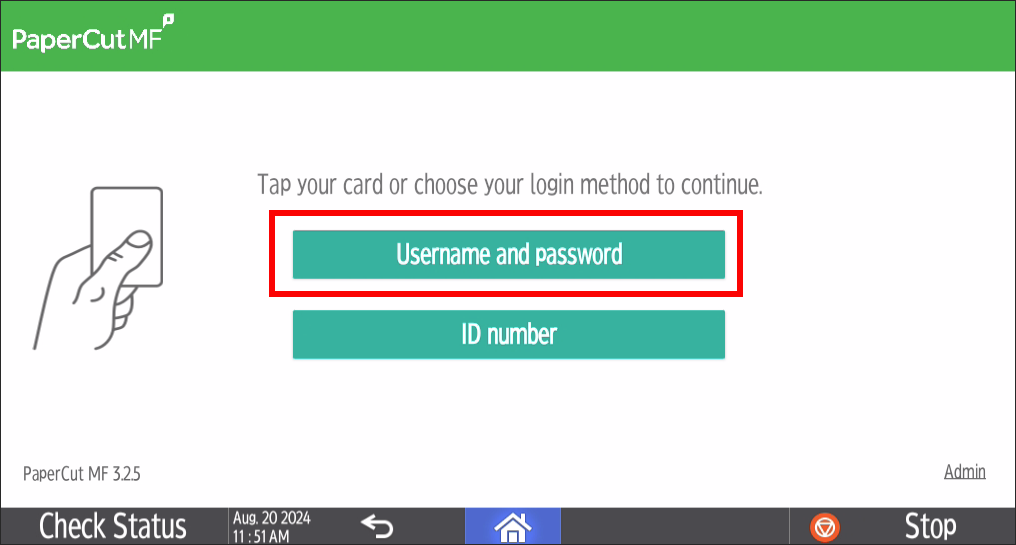
2. To login using your Auburn username and password, tap the screen on the printer + copier to wake up the screen. You will see a display to login using either your Auburn username and password or your ID number (print release code). To login using your Auburn username and password, tap 'Username and password.'
3. Tap 'Username.'
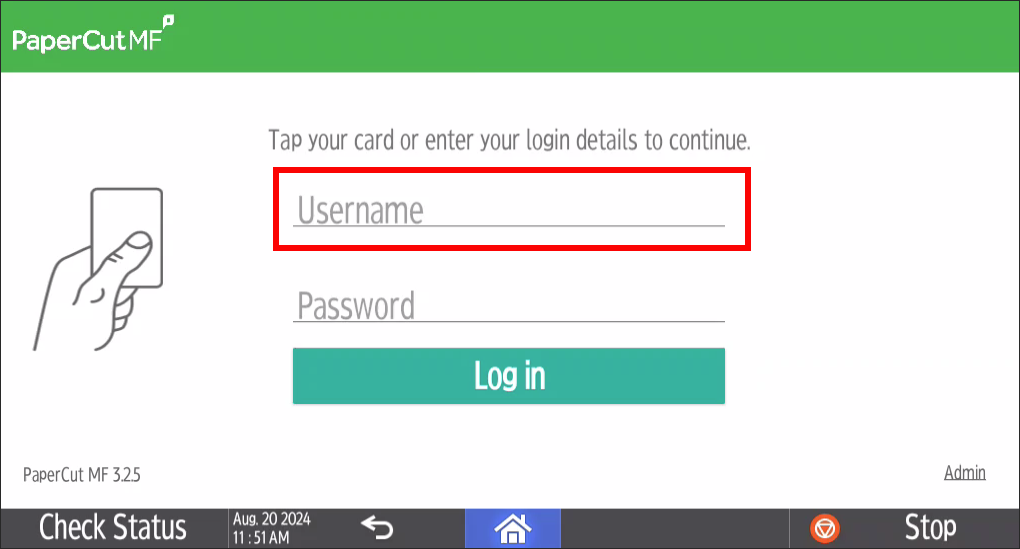
4. Enter your Auburn username (do not include @auburn.edu) and tap 'Next.'
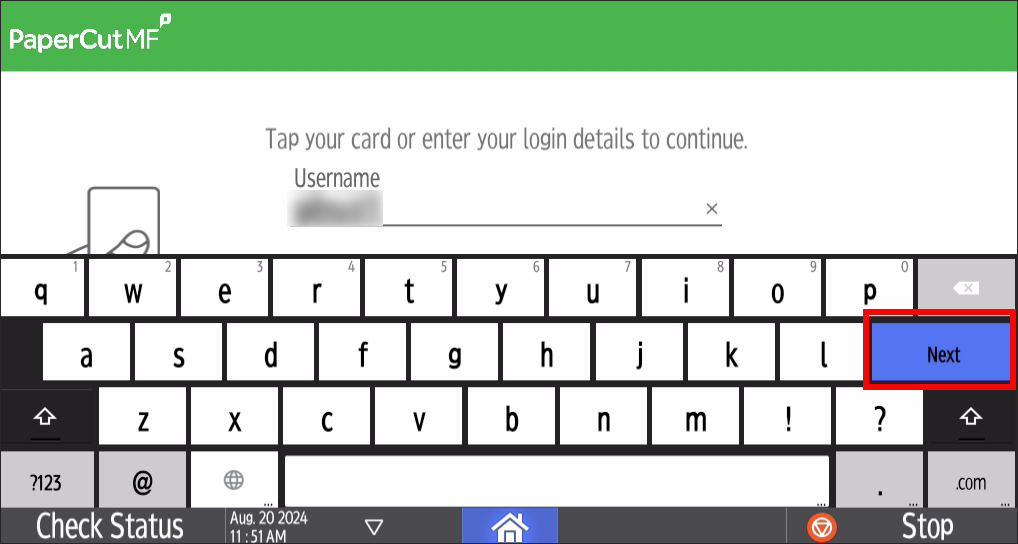
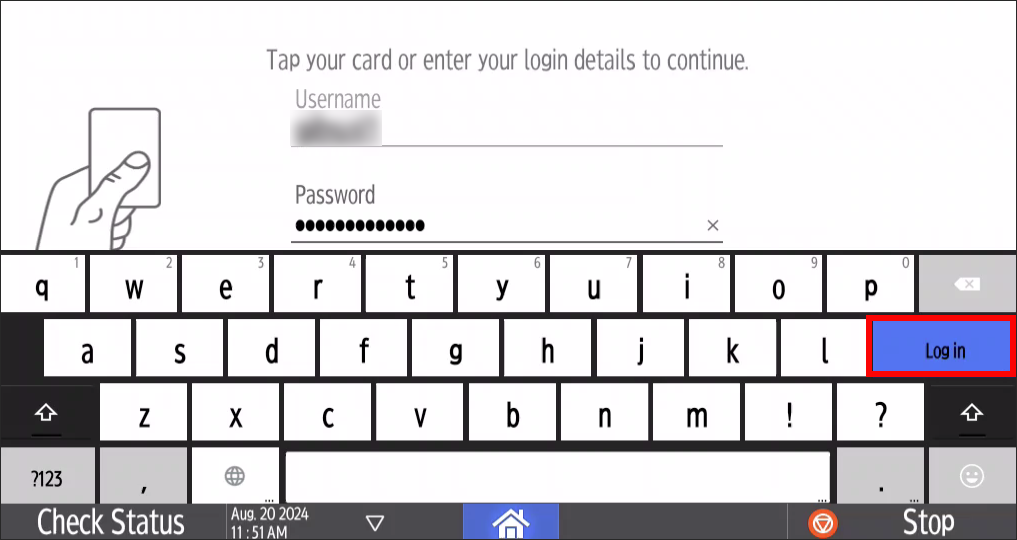
5. Enter your Auburn password and tap 'Log in.'
6. Alternatively, if you are logging in using your ID number (print release code), tap 'ID number.'
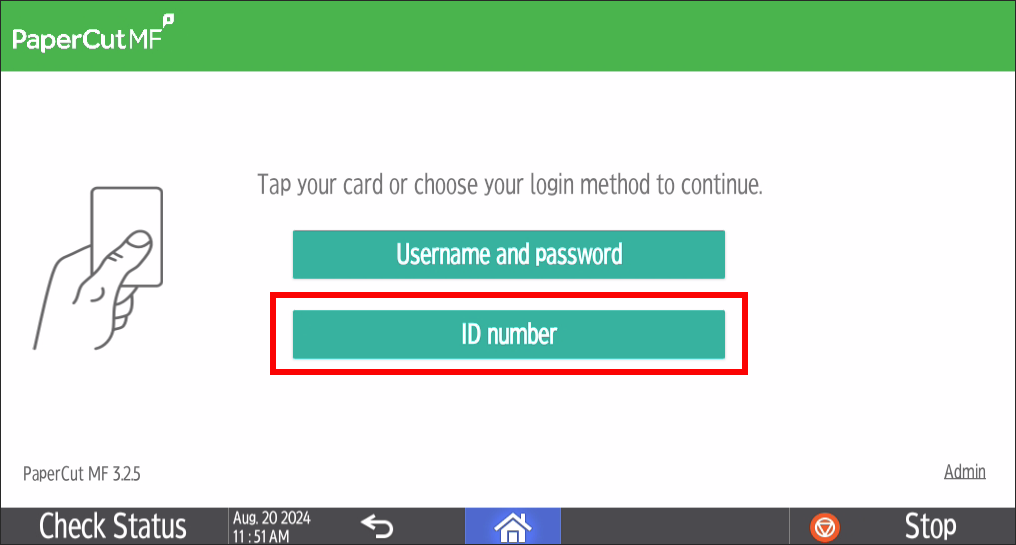
7. Locate your print release code from your PaperCut email. Tap 'ID number' (print release code).
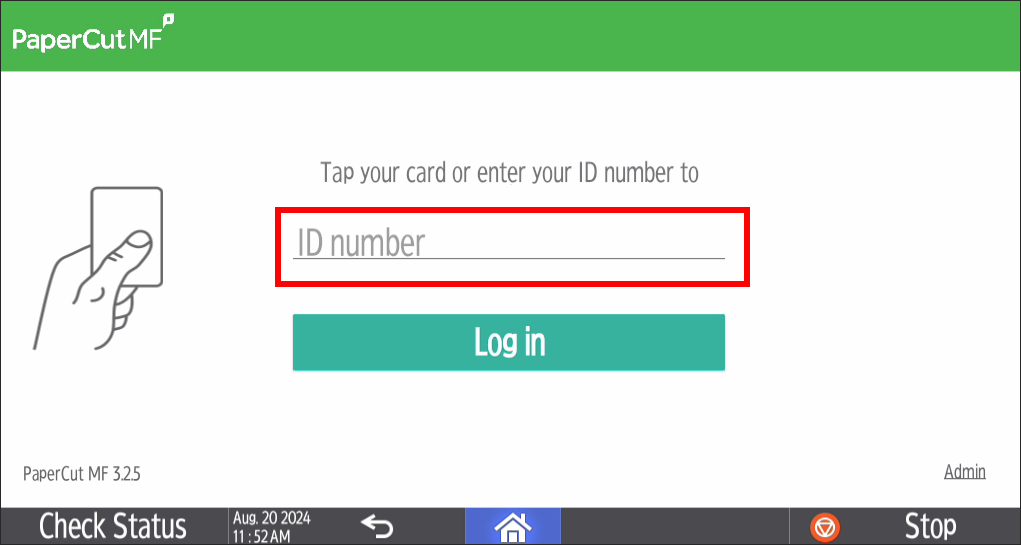
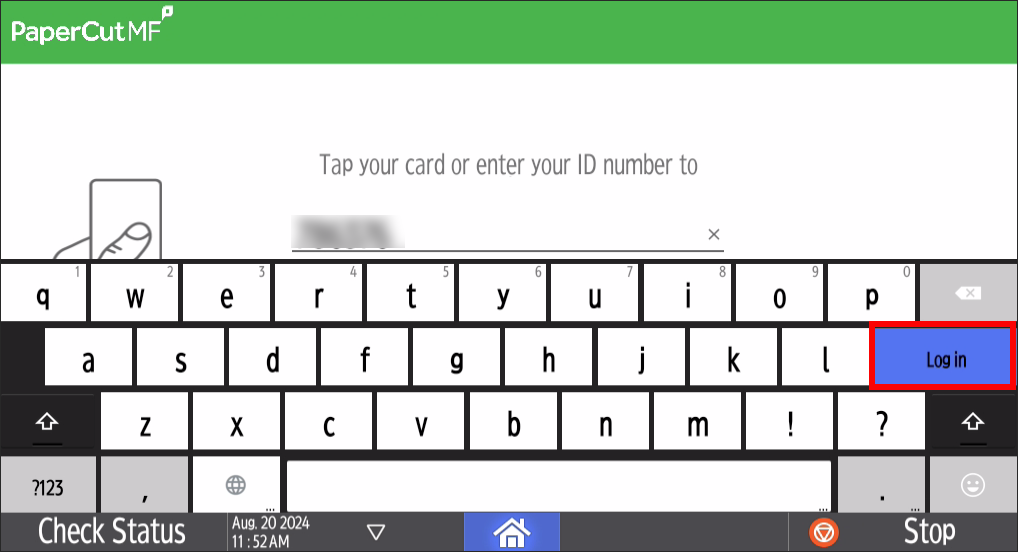
8. Enter your ID number (print release code) and tap 'Log in.'
Step 2: How to Scan
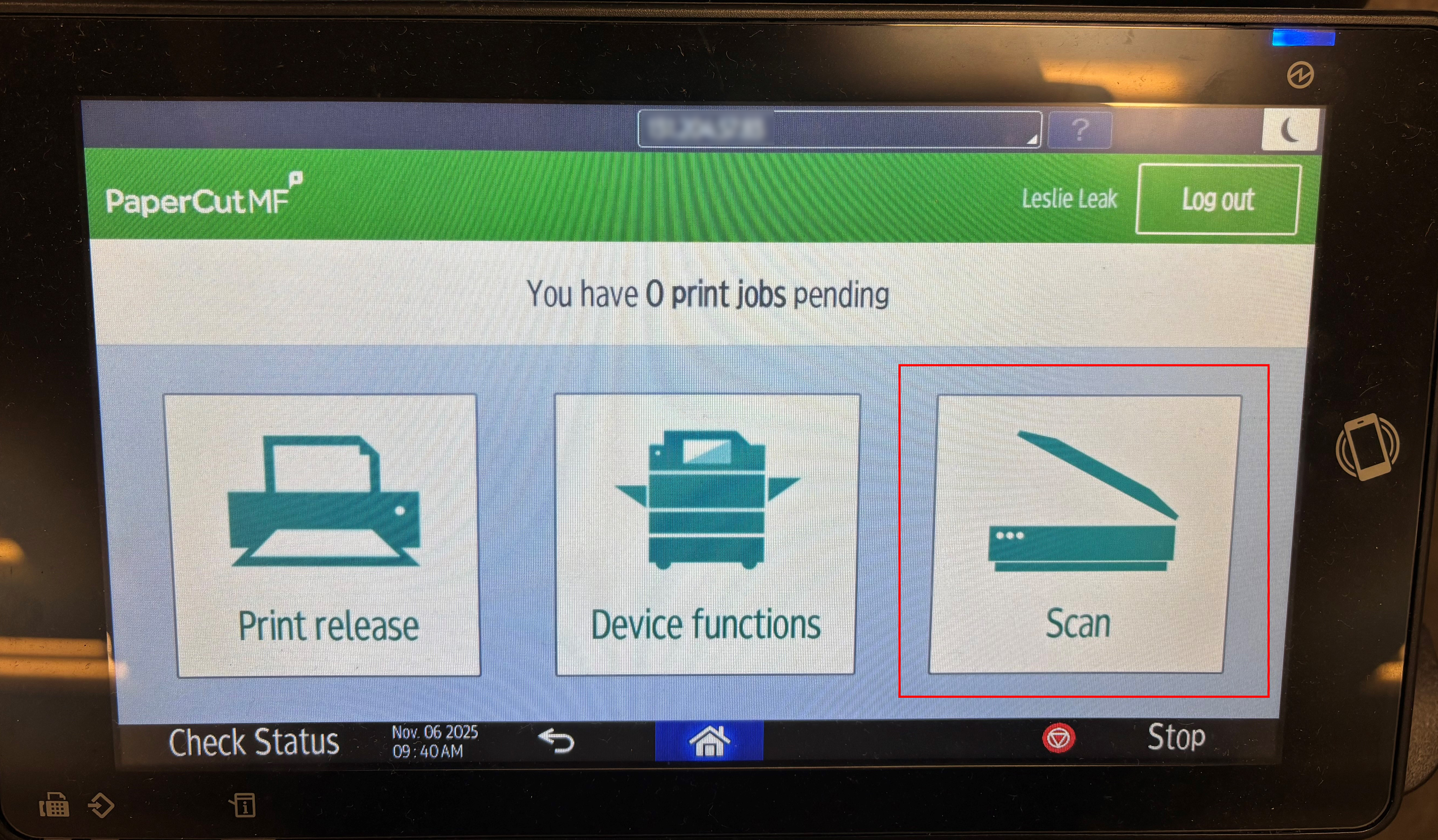
1. Once logged in, tap 'Scan.'
2. To scan, lift the copier lid, place your document on the glass, and close the lid. An example is shown below for scanning a portrait layout, 8.5 x 11 size sheet of paper.
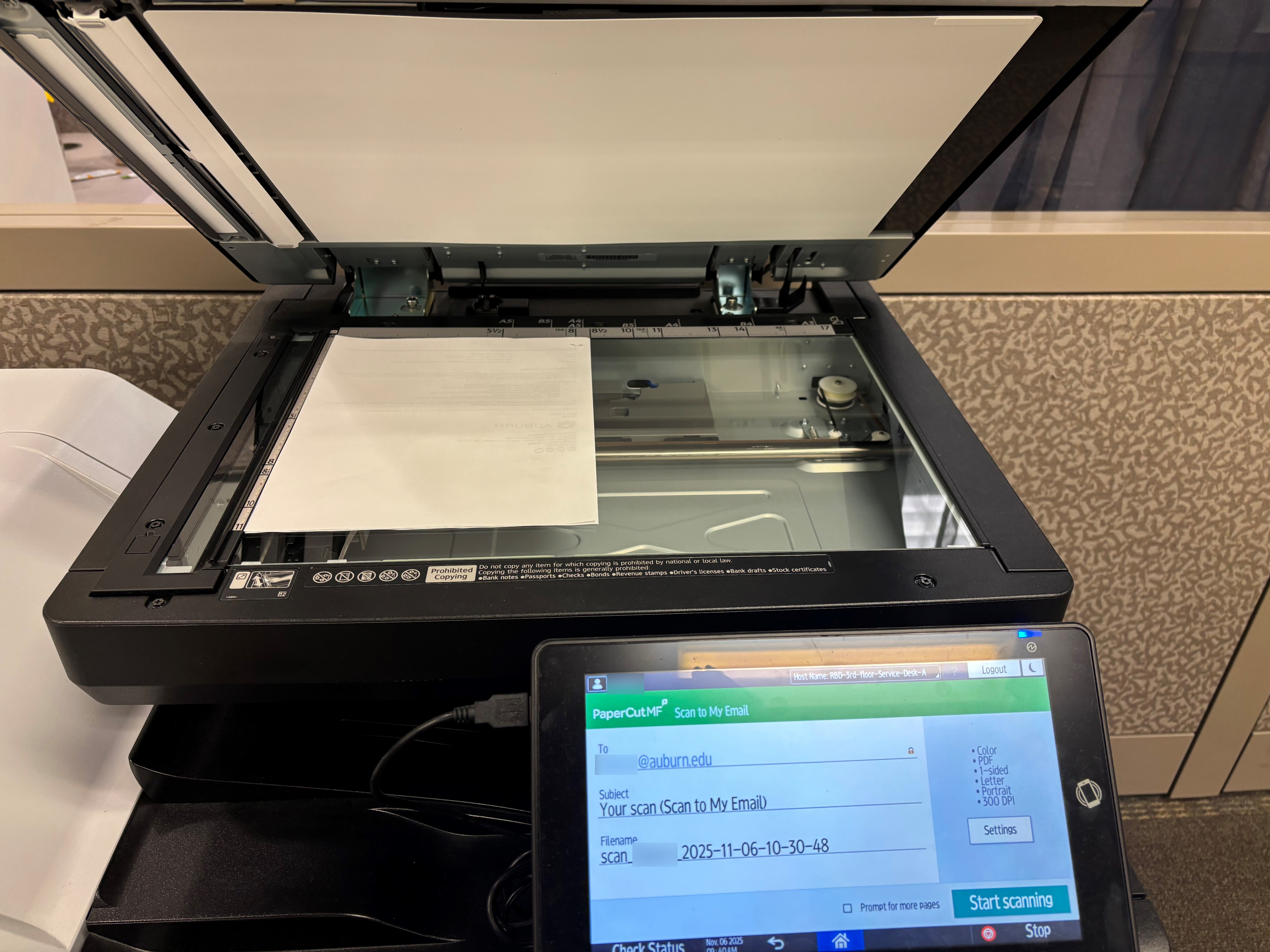
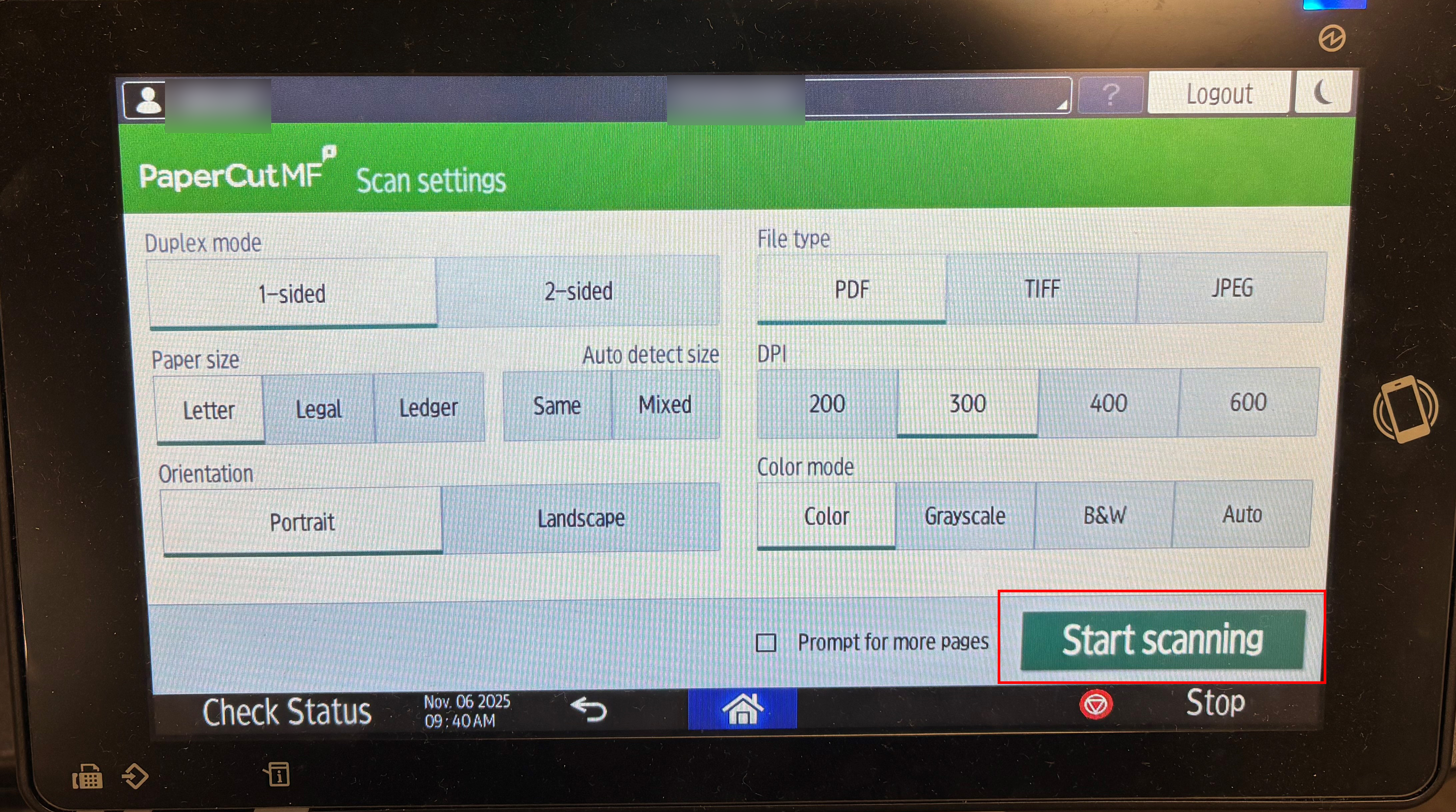
3. You will see the main Scanner screen that displays the email address where the scan will be delivered, as well as the email/scan subject and filename. From here, tap "Settings" to adjust various settings such as duplex mode (one-sided or double-sided), orientation, file type, and color vs. black and white.
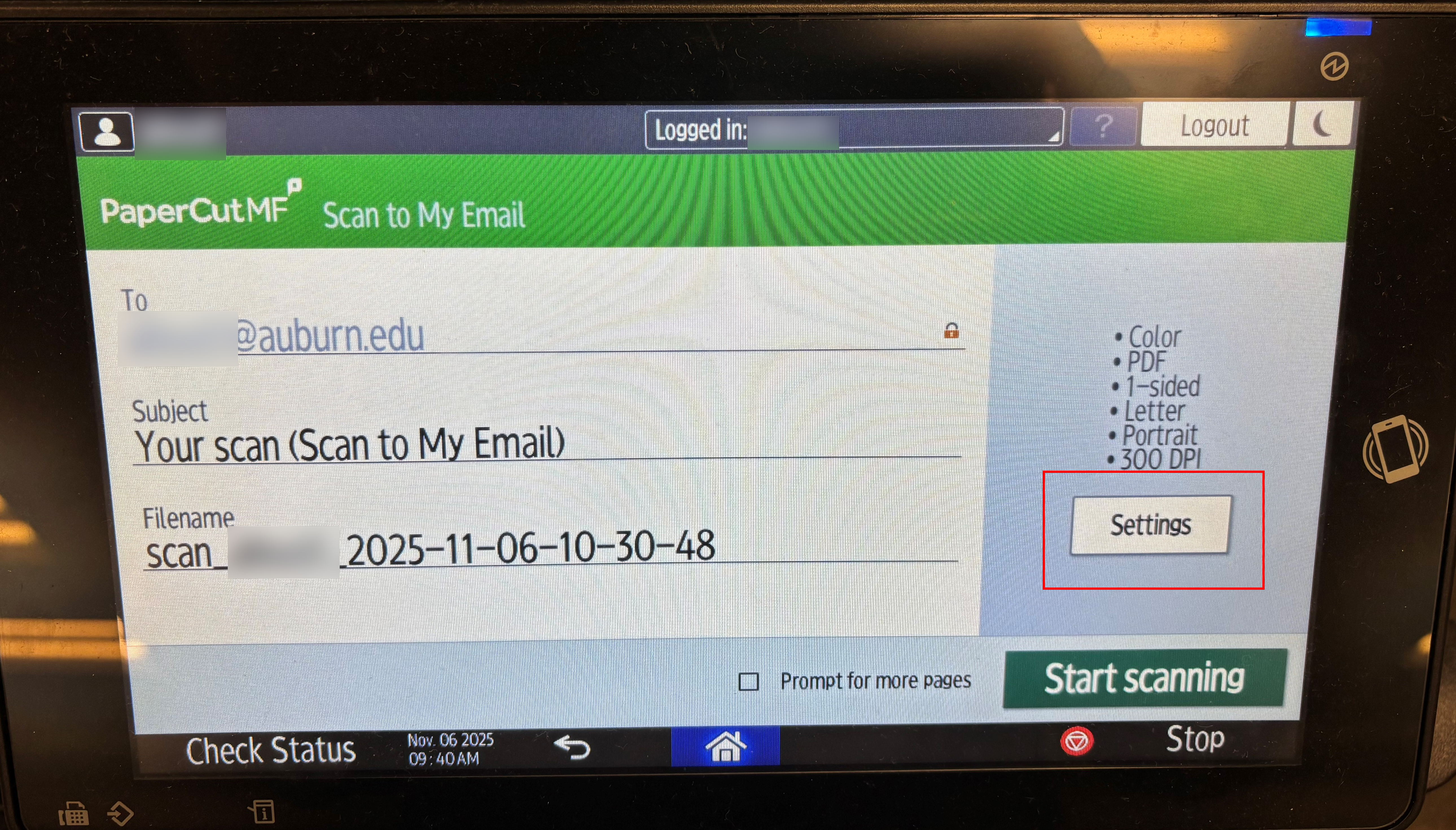
4. Adjust settings, if needed, and tap "Start scanning." Be sure to tap "Logout" in the top-right corner after the scan is complete.
Your scanned document will be delivered via email.